When you buy Sine Machine, you not only get a Standalone synthesizer app that you can run on your computer, you also get a VST3, AU and CLAP plugin that will work inside of various Digital Audio Workstations (DAWs) such as Ableton Live and Apple Logic Pro.
Logic Pro: Starting a new project with Sine Machine
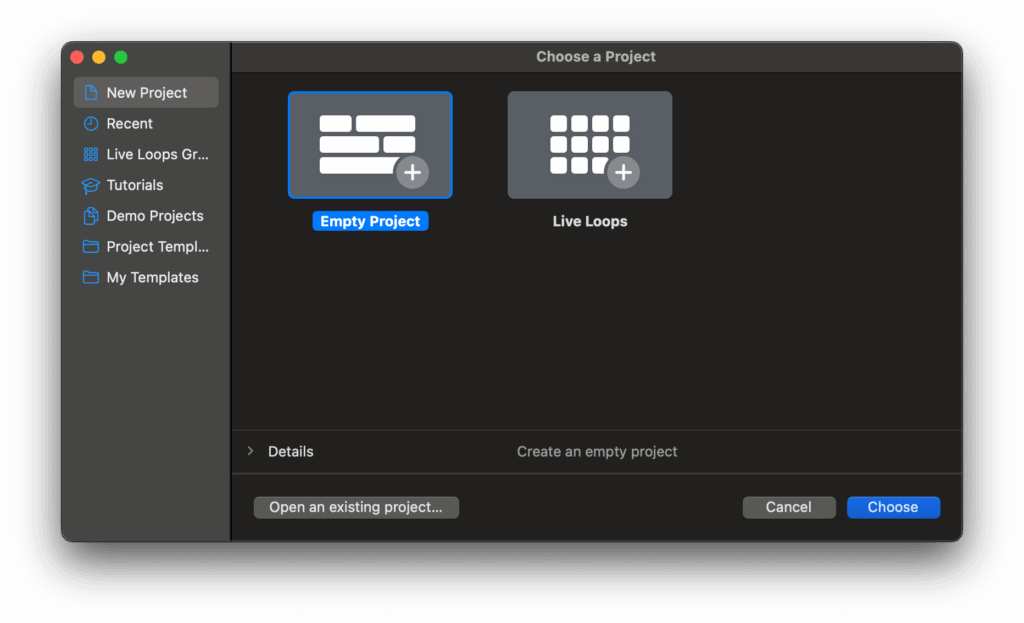
When first loading Logic, choose New Project > Empty Project from the Wizard.
The Create New Track dialog opens. Select MIDI and then click the Instrument dropdown and go to AU Instruments > Melatonin > Sine Machine or simply type sine in the search box to find it.
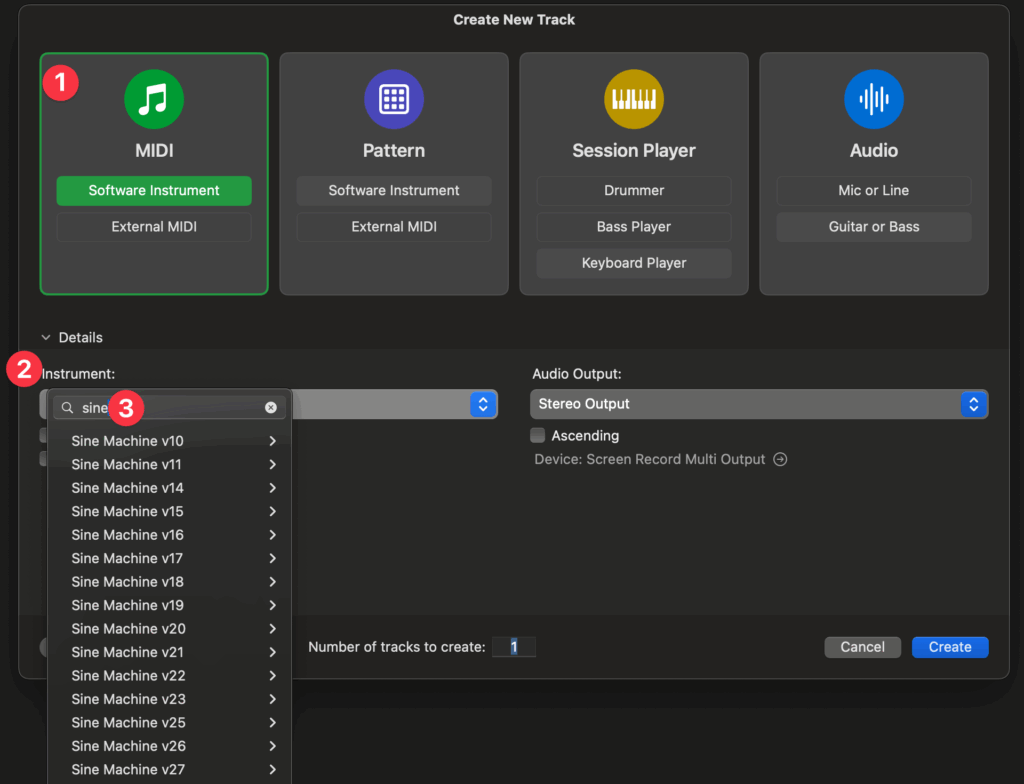
The next time you start a new project Sine Machine will already be selected and ready to go!
Logic Pro: Adding Sine Machine to an existing project
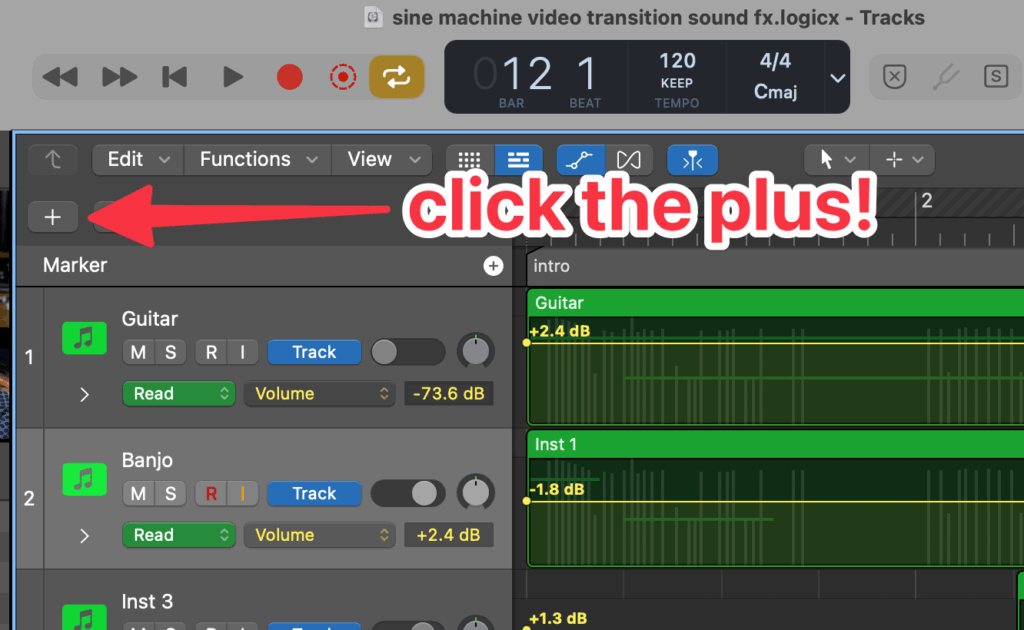
Click the plus button in the arrange view above the track headers.
The Create New Track Wizard opens.
Click MIDI then click the Instrument drop down and select AU Instruments > Melatonin > Sine Machine.
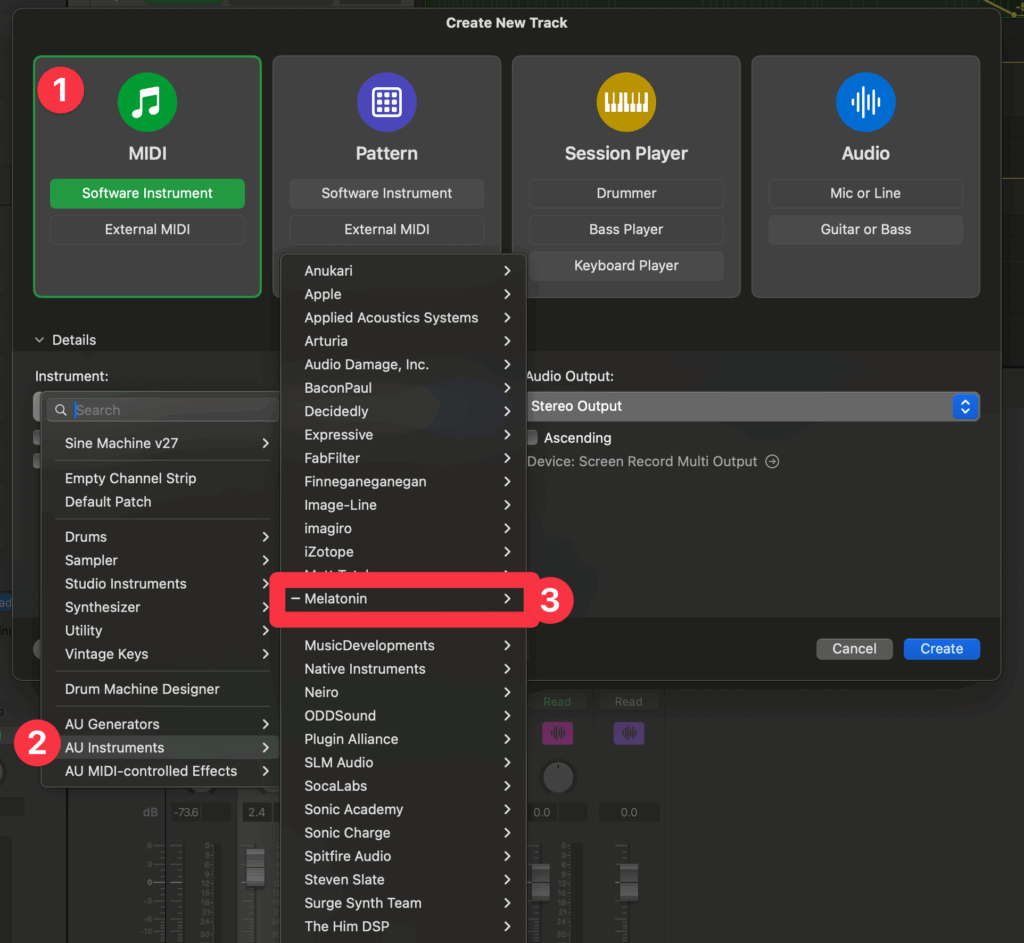
This creates a new track and opens the Sine Machine UI for you.
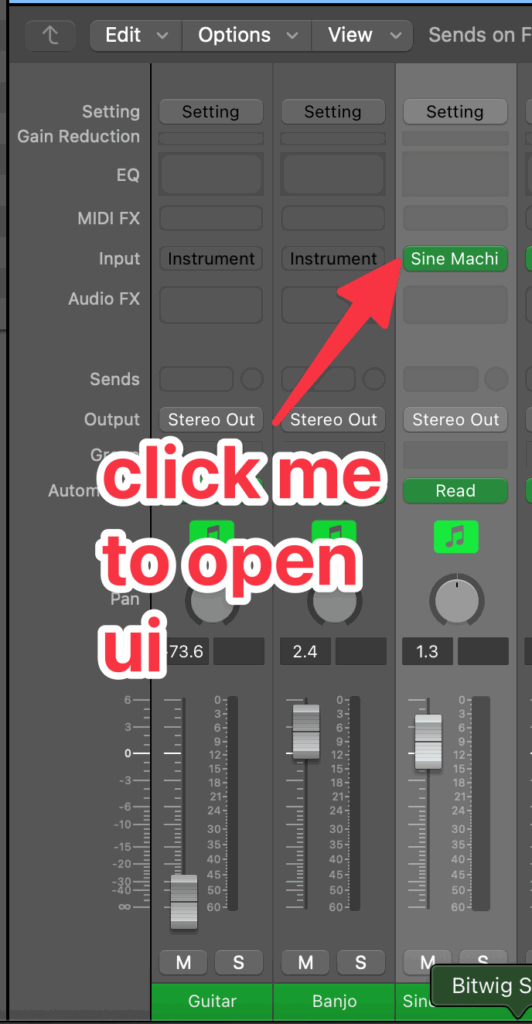
To open Sine Machine’s (UI) after you’ve closed it, click the green Sine Machine “Input” in the new track in the Mixer.
Ableton Live
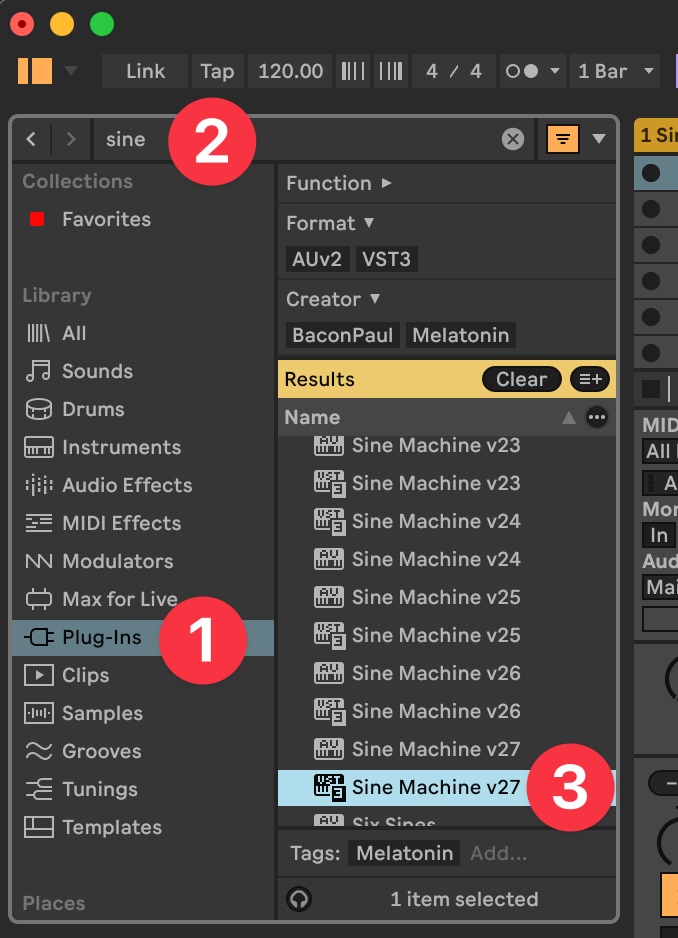
To add Sine Machine to your Ableton Live project:
- Click
Plug-Insin your library - Type
sinein the search box. (Alternatively, scroll down and double clickMelatoninin the list). - Double click
Sine Machinein the list.
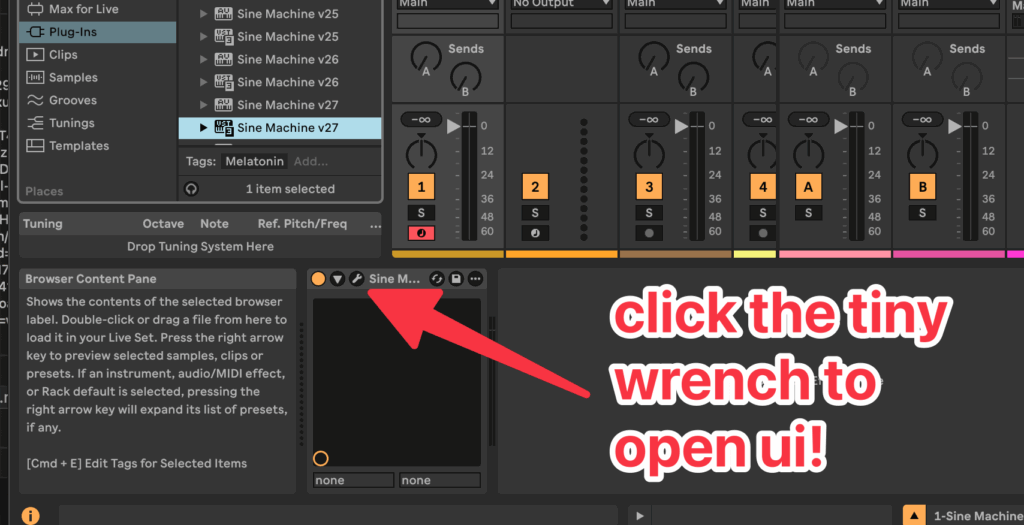
To open Sine Machine’s UI in Ableton, click the comically tiny wrench icon in the device view.

Leave a Reply